
My Practice Week: A Smarter Timer and Training Calendar
Regular, modest practice beats the occasional marathon. My Practice Week gives every Morse Trainer Pro user a practical way to protect a few training blocks, start a focused timer, and see how the plan compares with sessions actually recorded by the trainers.
The planner is available from the home page, the timer follows you between training tools, and the monthly calendar lives in Statistics Studio. Together they answer three useful questions: What did I intend to practise? What am I doing now? What did I truly complete?
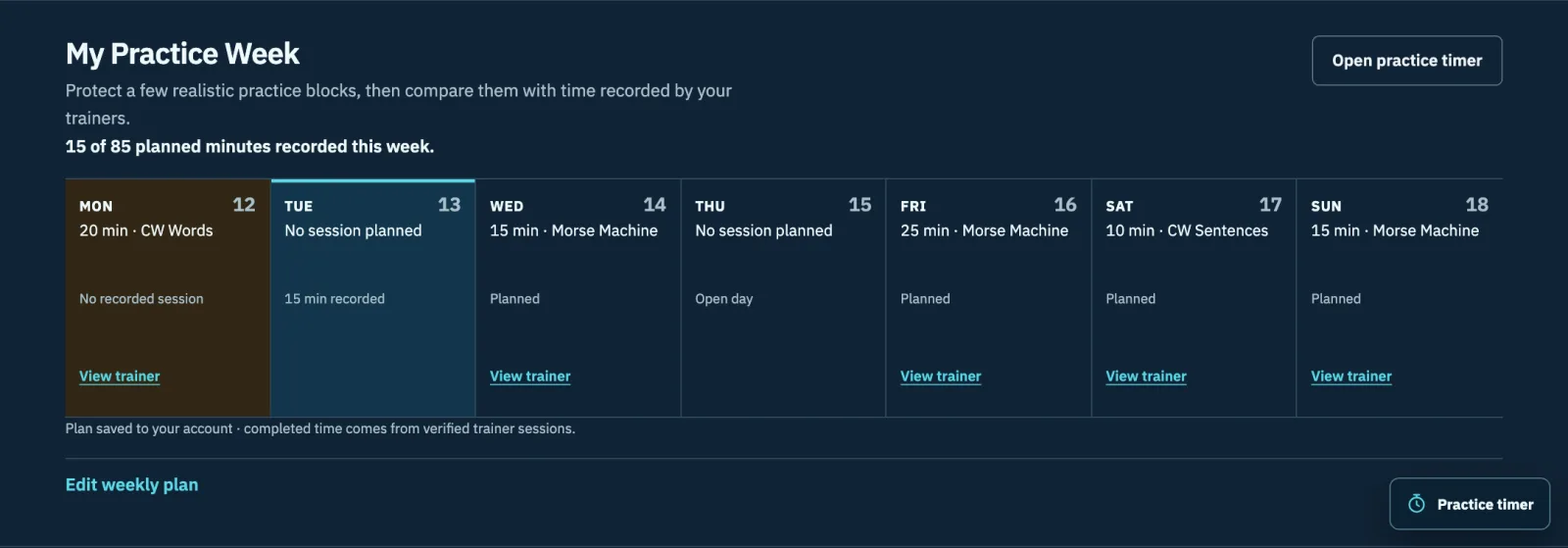
Build a week you can actually keep
Open Edit weekly plan and choose the days you want to practise. Each enabled day can have its own duration and trainer, so a week might combine short Morse Machine sessions, CW Words, callsign work, and a longer weekend block.
The plan repeats weekly. It is meant to remove the small daily decision of “what should I do now?” while remaining easy to change when life or operating goals shift.
- Choose only the days that fit your real schedule.
- Assign a realistic number of minutes to each day.
- Select the trainer that matches the skill you want to improve.
- Use the direct trainer link when it is time to begin.
A timer that travels between trainers
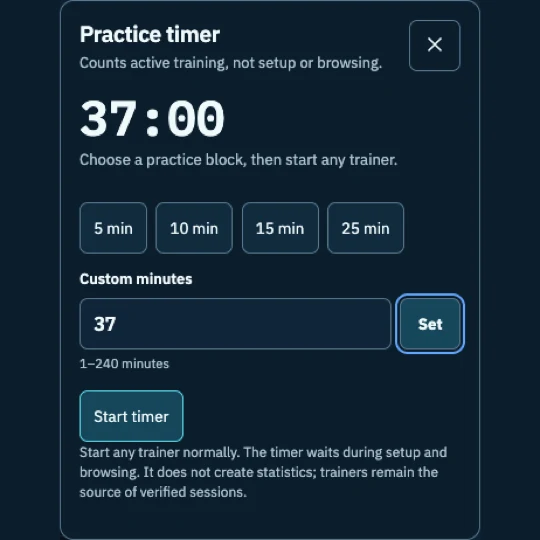
The Practice Timer offers 5, 10, 15, and 25 minute presets, plus a custom setting for any whole-minute block from 1 to 240 minutes. Start it once, then use any trainer normally. The clock begins automatically when the trainer session starts, pauses with the trainer, and waits during setup or ordinary browsing. Its state is stored in the browser so the same practice block follows you between tools.
This makes the timer useful without making it invasive. You can close and reopen the panel, move between pages, pause your work, or stop when the planned block is complete.
The timer never invents statistics
A countdown is an intention aid, not proof that training happened. Starting the timer does not create a session or add minutes to your statistics. The trainer remains the source of verified evidence.
When a supported trainer completes and saves a session, its canonical record supplies the duration, accuracy, speed, and other available metrics. This separation keeps the calendar honest: planned time comes from your schedule; completed time comes from real trainer activity.
See the month, not just today
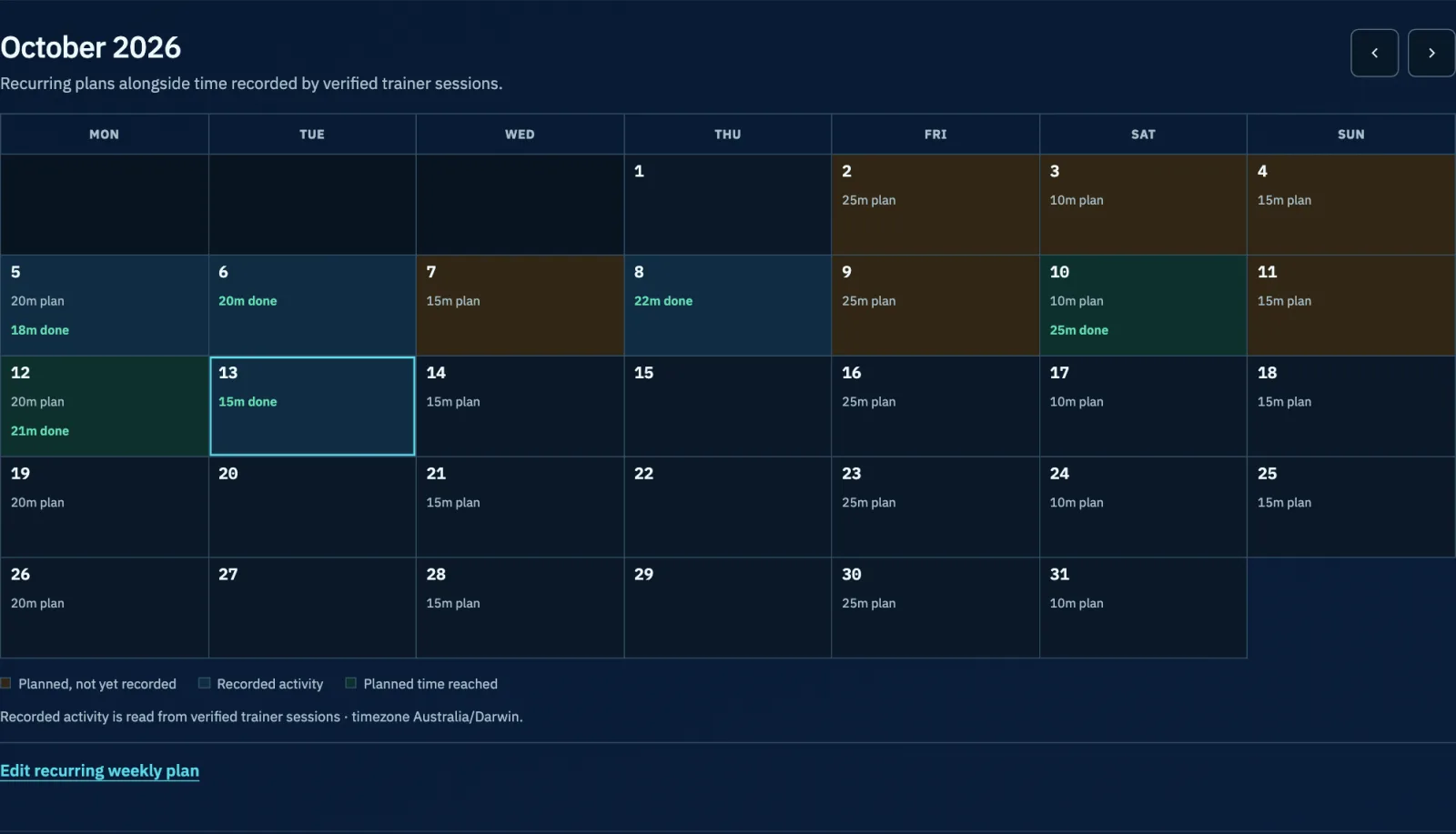
Statistics Studio now includes a monthly practice calendar. Planned-but-not-yet-recorded days use one state, days with completed activity use another, and reaching the day's planned duration is clearly distinguished. Previous and next month controls make longer patterns easy to review.
Recorded activity comes from canonical trainer sessions and excludes wrapper-only duplicates. The calendar also respects the timezone in your analytics settings, so a late-evening session lands on the day that makes sense to you.
Signed in or practising as a guest
Guests can use My Practice Week immediately; their plan remains in that browser. Signed-in users save the weekly plan with their analytics preferences, making it available when the account is used elsewhere. The running timer stays in the current browser because it represents the block happening on that device right now.
Quick start
- Go to the Morse Trainer Pro home page and find My Practice Week.
- Open Edit weekly plan, enable a few days, and choose minutes and trainers.
- Open the Practice Timer, select a preset or enter custom minutes, and start it. Then begin any trainer session; counting starts automatically.
- After training, open Statistics Studio to compare the plan with verified results.
Start smaller than your ambition. A repeatable 10 or 15 minutes is enough to build rhythm, and the calendar will make that consistency visible.